¶ How to Create a Tournament Schedule
Only the Tournament Organizer can create a Tournament Schedule, although the Super Admin may make modifications as necessary. Once a tournament has been created, teams will start registering. When registration closes or the maximum team capacity is reached, the organizer can proceed to generate the tournament schedule.
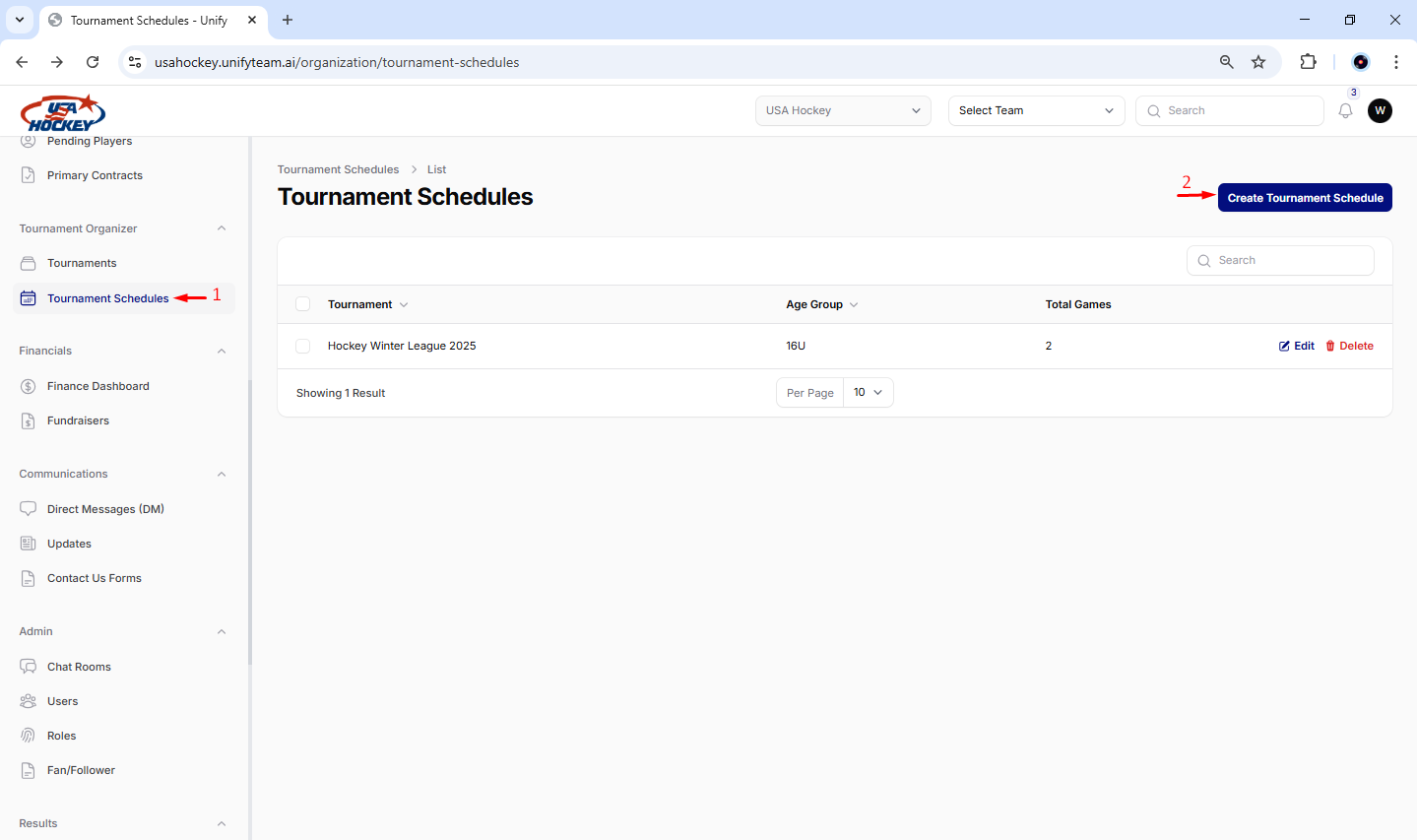
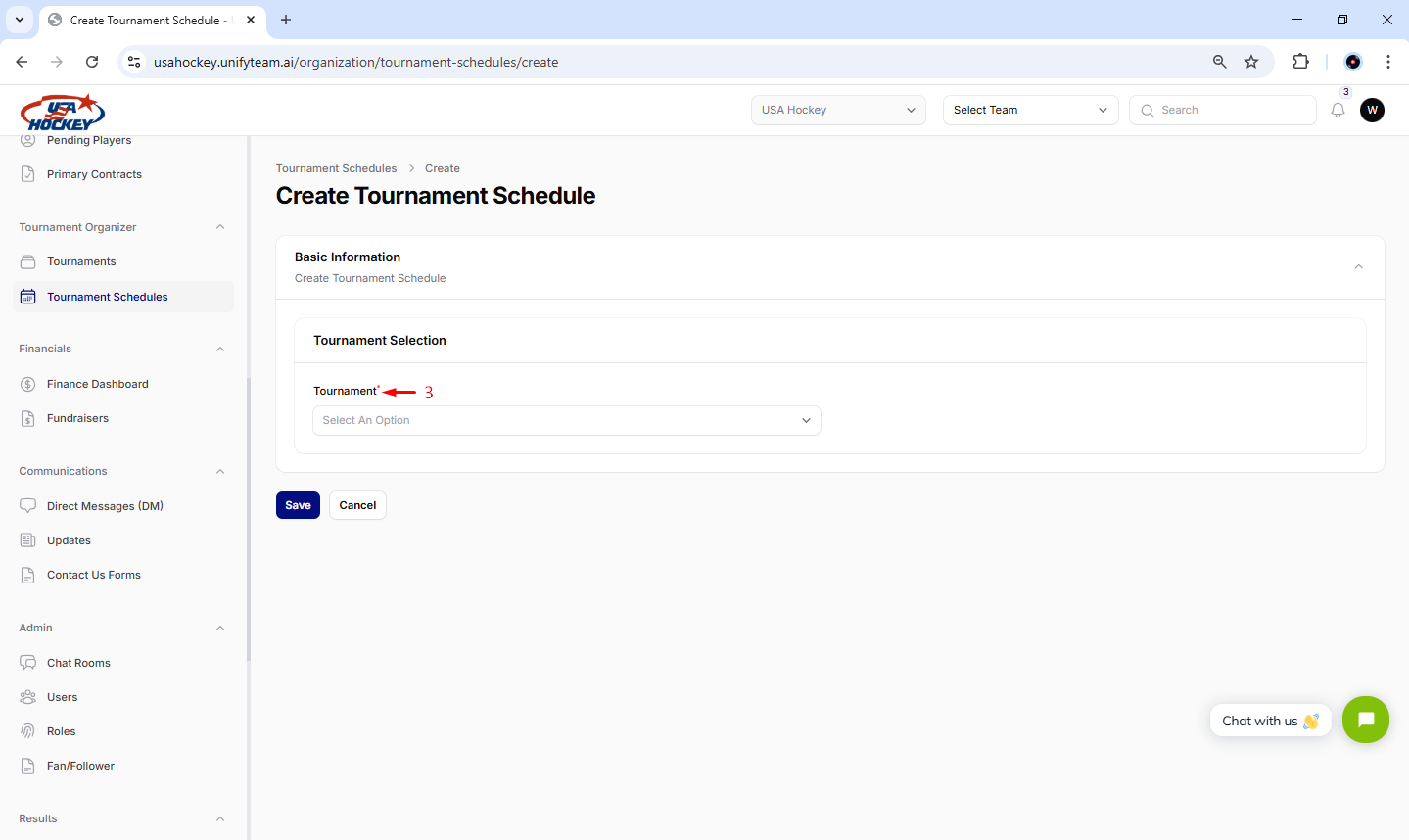
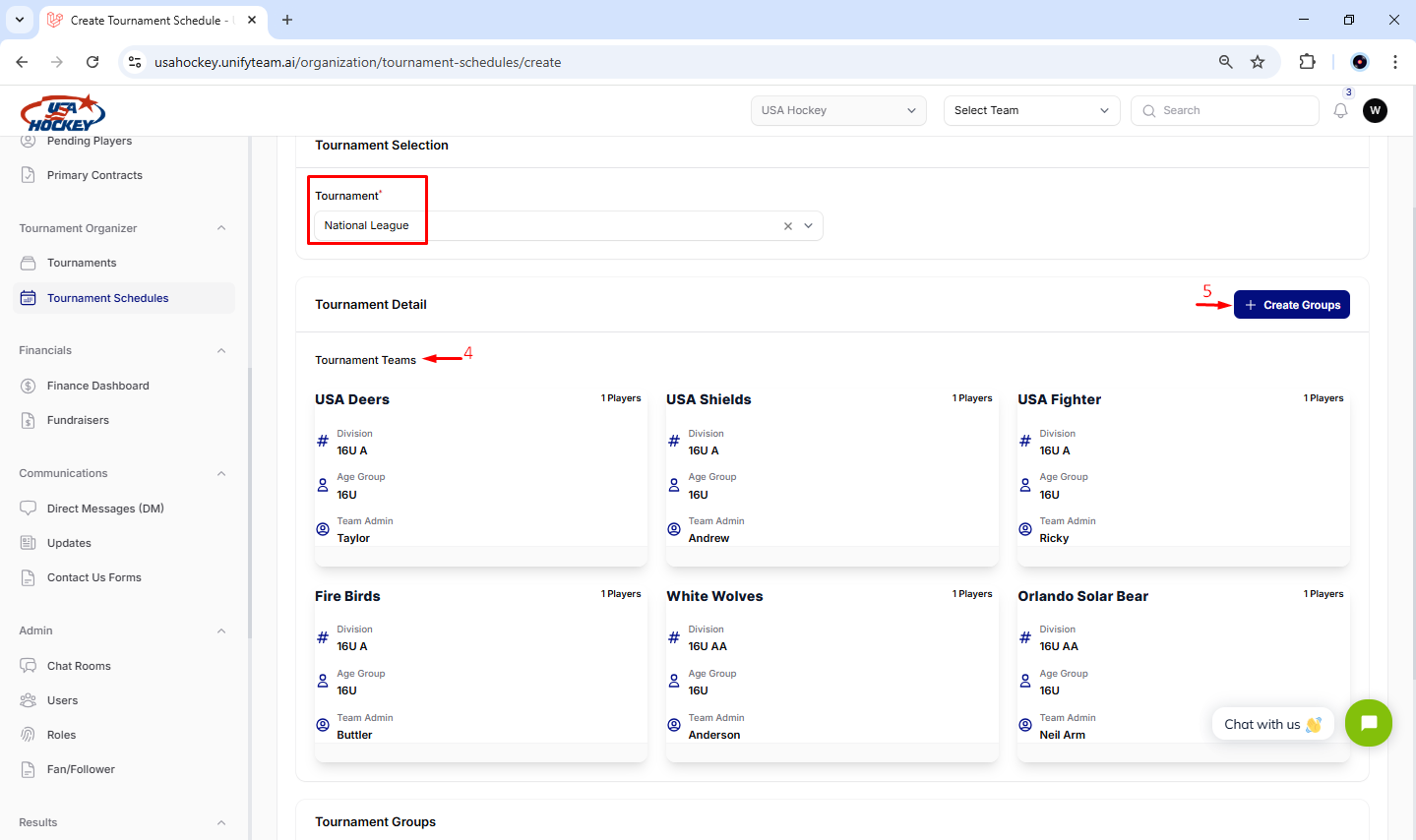
1. Access the Tournament Schedules Section
- The Tournament Organizer is granted access to the full tournament schedule via their dedicated portal.
- Navigate to the Tournament Schedules section in the sidebar on the left.
- Click on the Tournament Schedules icon to view and manage all tournament schedules.
2. Create a New Tournament Schedule
- Click the Create Tournament Schedule button at the top-right corner of the page to add a new schedule.
- This will take you to the tournament schedule creation form, where you can enter all necessary details.
3. Select Tournament
- The tournament selection field enables you to choose from active tournaments for which the schedule has not yet been finalized or generated.
- The dropdown menu presents a list of available tournaments for selection.
- Choose the relevant tournament from the available options in the dropdown menu.
- Upon selecting a tournament, all registered teams are displayed, and further fields related to tournament scheduling become available for configuration.
4. Review Tournament Teams
- In the Tournament Detail section:
- The Tournament Teams list displays all teams participating in the selected tournament.
- Review the details of each team, including:
- Team name.
- Division and age group.
- Team admin.
¶ Creating Group
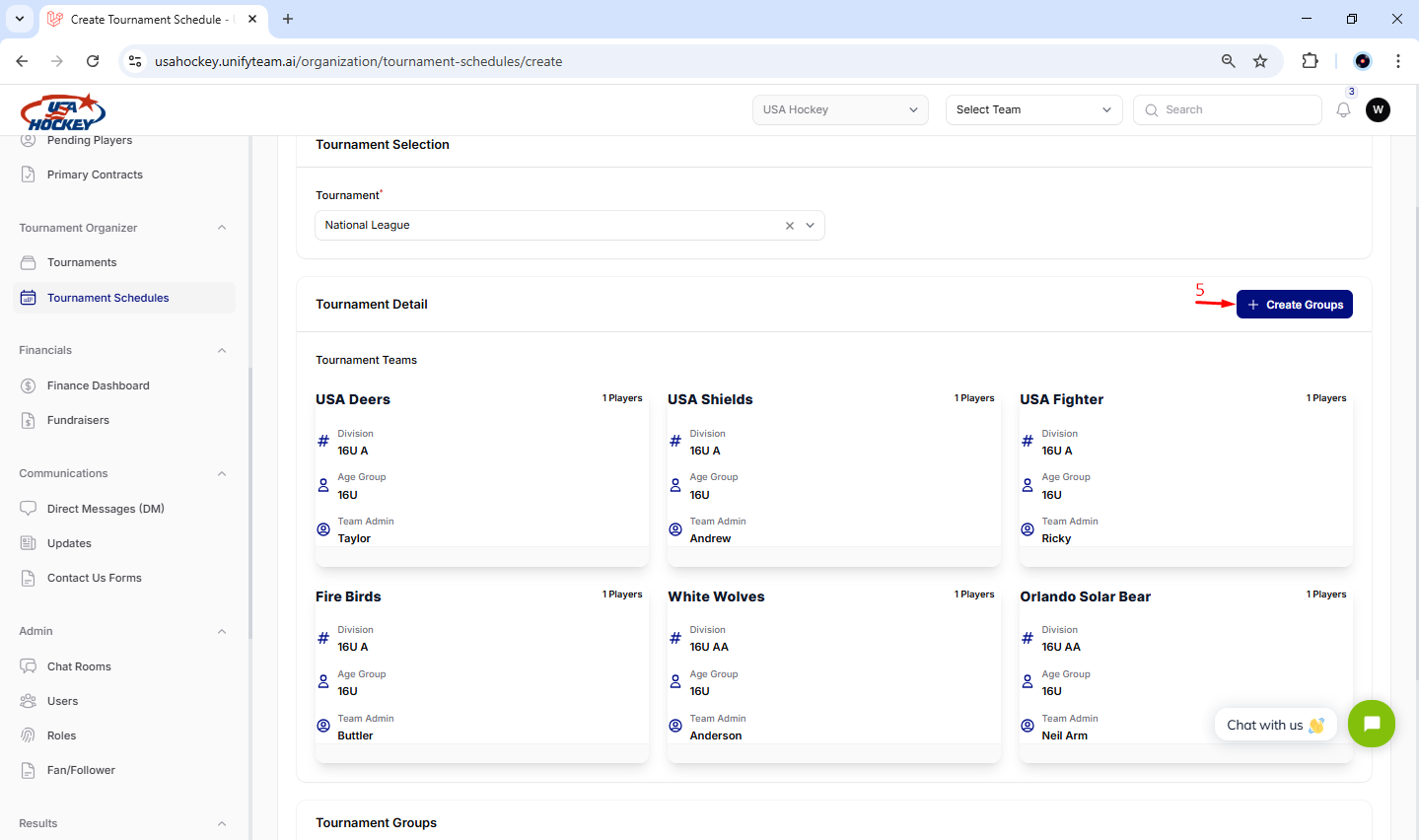
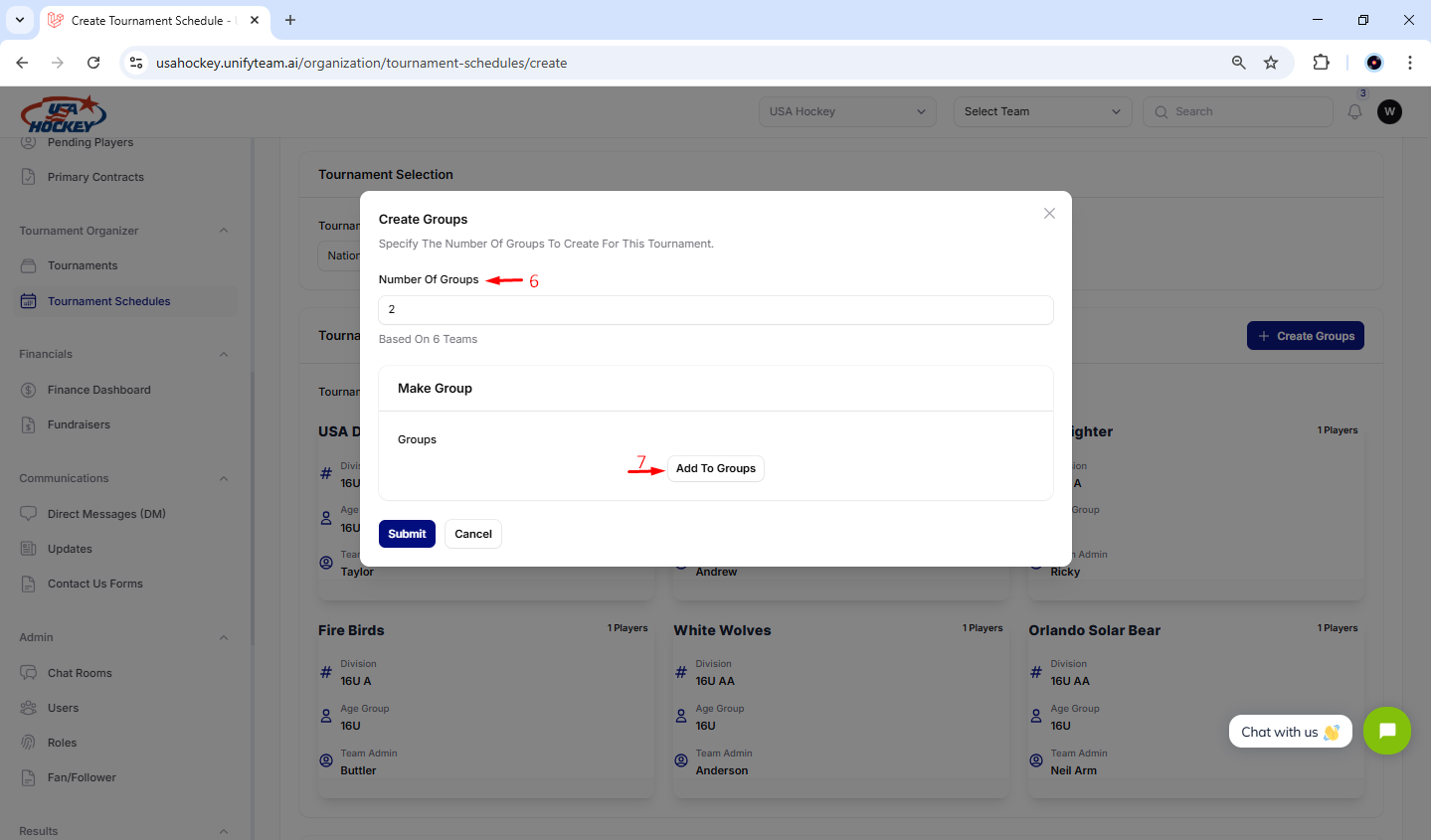
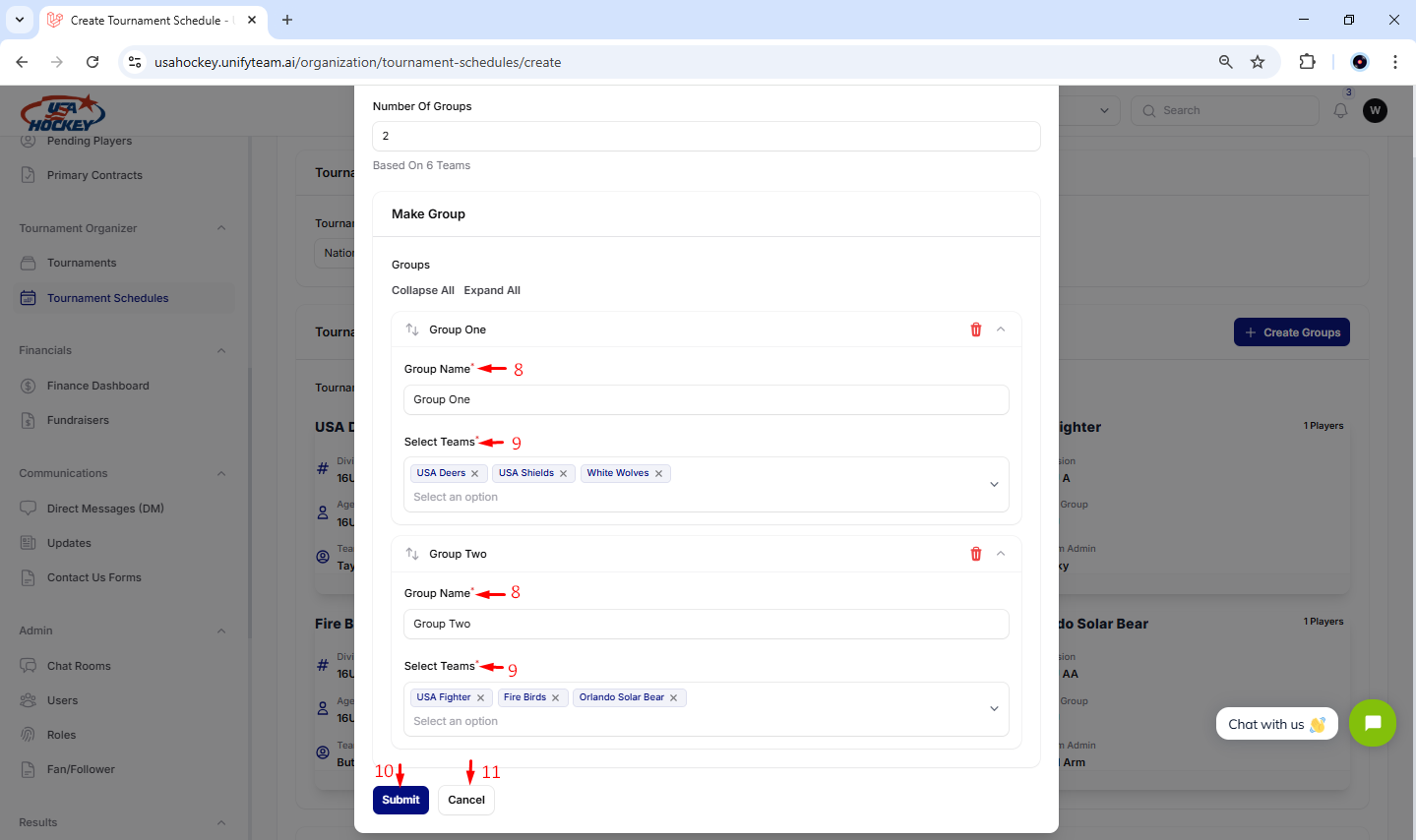
5. Create Groups
- Click the Create Groups button to organize teams into groups for the tournament schedule.
- This step is crucial for creating balanced matchups and ensuring fair play.
- To ensure balanced group distribution, each group must contain the same number of teams. Therefore, the number of groups should be set according to the total number of participating teams.
- As an example, when organizing teams into groups, an even number of teams must be distributed across an even number of groups to ensure balanced division.
6. Specify the Number of Groups
- In the Create Groups modal:
- Enter the desired Number of Groups based on the total number of teams participating in the tournament.
- The system will display the “Add To Group” button.
7. Add Teams to Groups
- After selecting the number of groups.
- Use the Add To Groups button to assign teams to the specified groups.
- Once group fields are displayed, you can begin organizing teams into groups.
- To create additional groups, simply click the "Add to Groups" button.
8. Name Each Group
- For each group:
- Enter a descriptive Group Name to identify the group.
- Ensure that each group name is unique and meaningful.
- The system allows you to create only the number of groups that you have previously defined in the setup section.
9. Assign Teams to Groups
- In the Select Teams section:
- Choose the teams you want to include in each group from the dropdown menu.
- Make sure the number of teams assigned to each group matches your tournament structure.
- Once teams are assigned to a group, they cannot be duplicated or reassigned to any other group within the same tournament.
10. Submit the Configuration
- Once you have completed naming the groups and assigning teams:
- Click the Submit button to save your group configuration.
- This action will finalize the group setup and allow you to proceed to the next steps in scheduling matches.
11. Cancel
- If you decide not to create groups or need to make significant changes.
- Click the Cancel button to discard any unsaved progress.
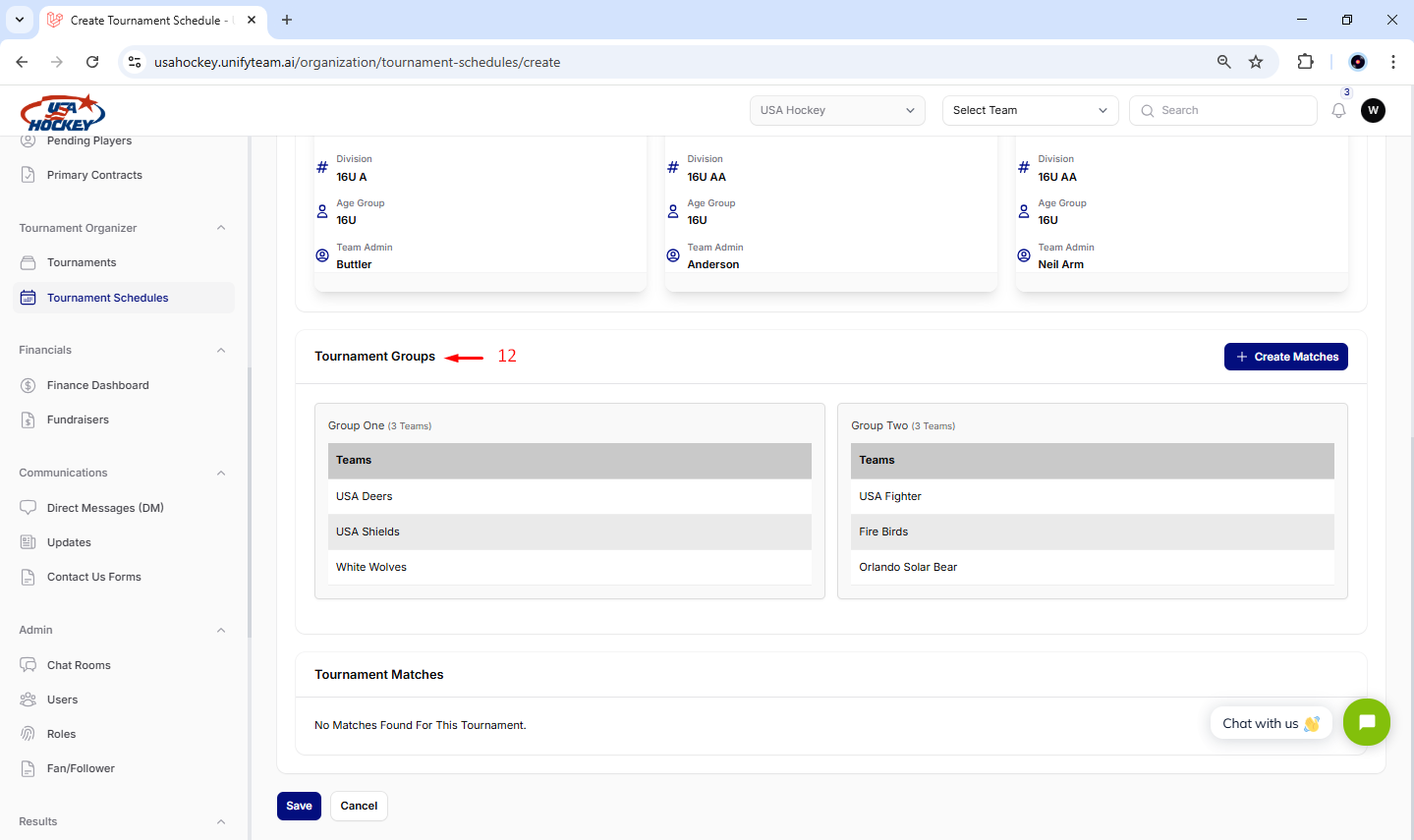
12. Tournament Groups
- The interface shows the newly created groups, including the list of teams assigned to each one for clear organization and management.
¶ Creating Match
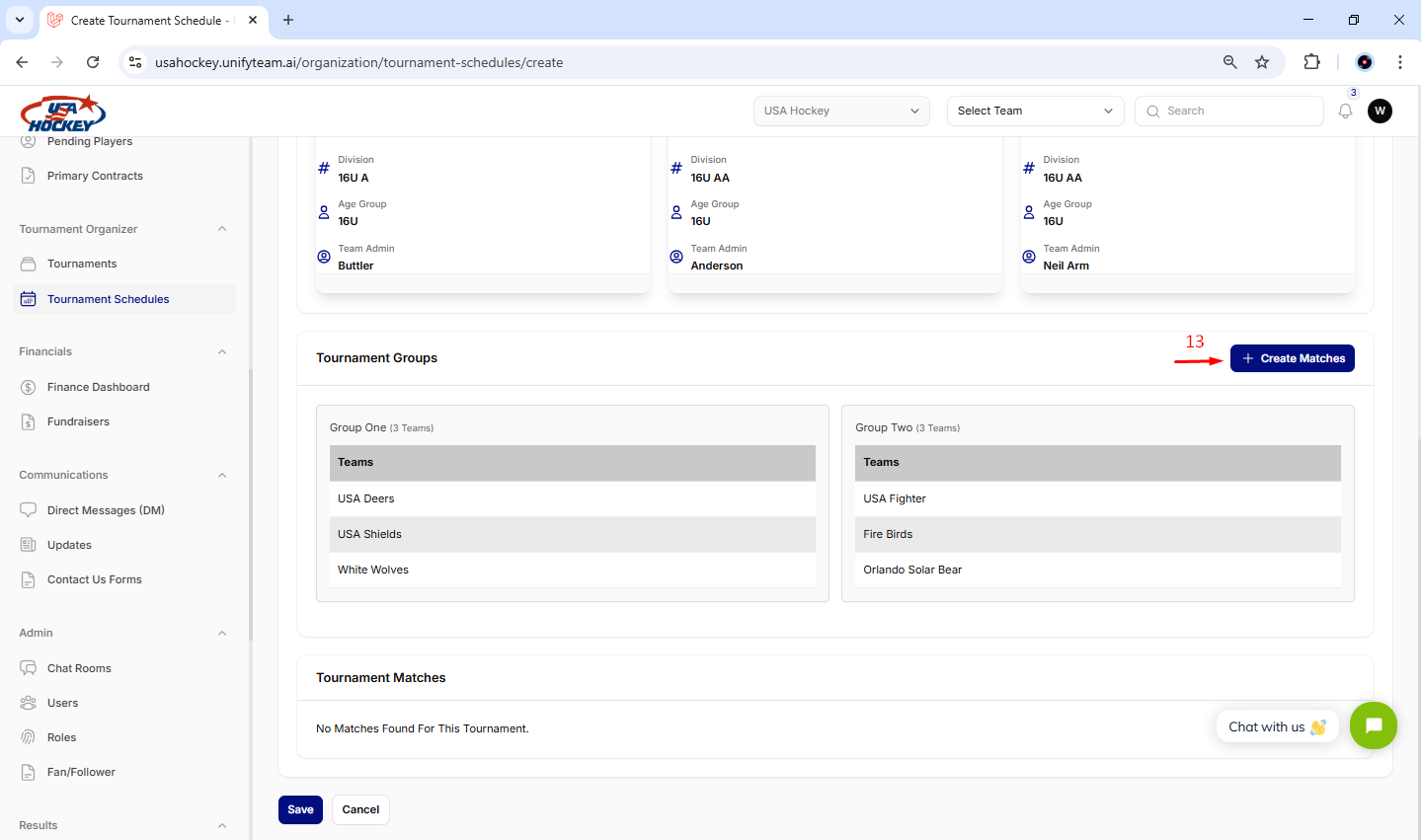
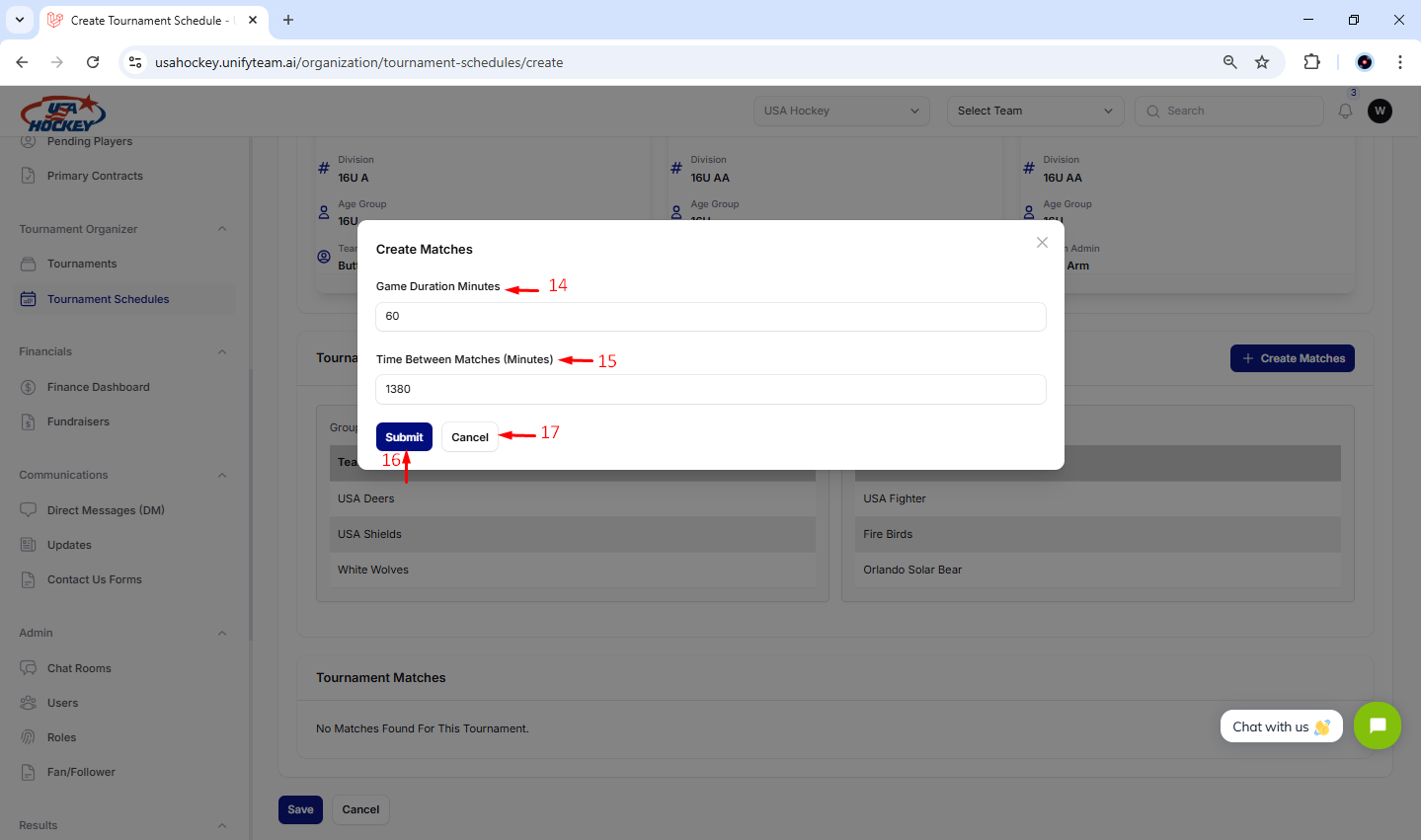
13. Create Matches
- Click the Create Matches button to organize group stage matches.
- Clicking this button opens the modal.
14. Set Game Duration
- In the Create Matches modal:
- Enter the Game Duration Minutes to specify how long each match will last.
- Ensure this duration aligns with your tournament rules and venue availability.
15. Define Time Between Matches
- In the Time Between Matches (Minutes) field:
- Specify the time interval between matches to allow for breaks, setup, or other activities.
- This ensures smooth scheduling and avoids overlaps.
16. Submit Match Configuration
- Once you have entered the required details:
- Click the Submit button to save your match configuration.
- This action will finalize the match settings.
17. Cancel Changes
- If you decide not to create matches or need to make significant changes.
- Click the Cancel button to discard any unsaved progress.
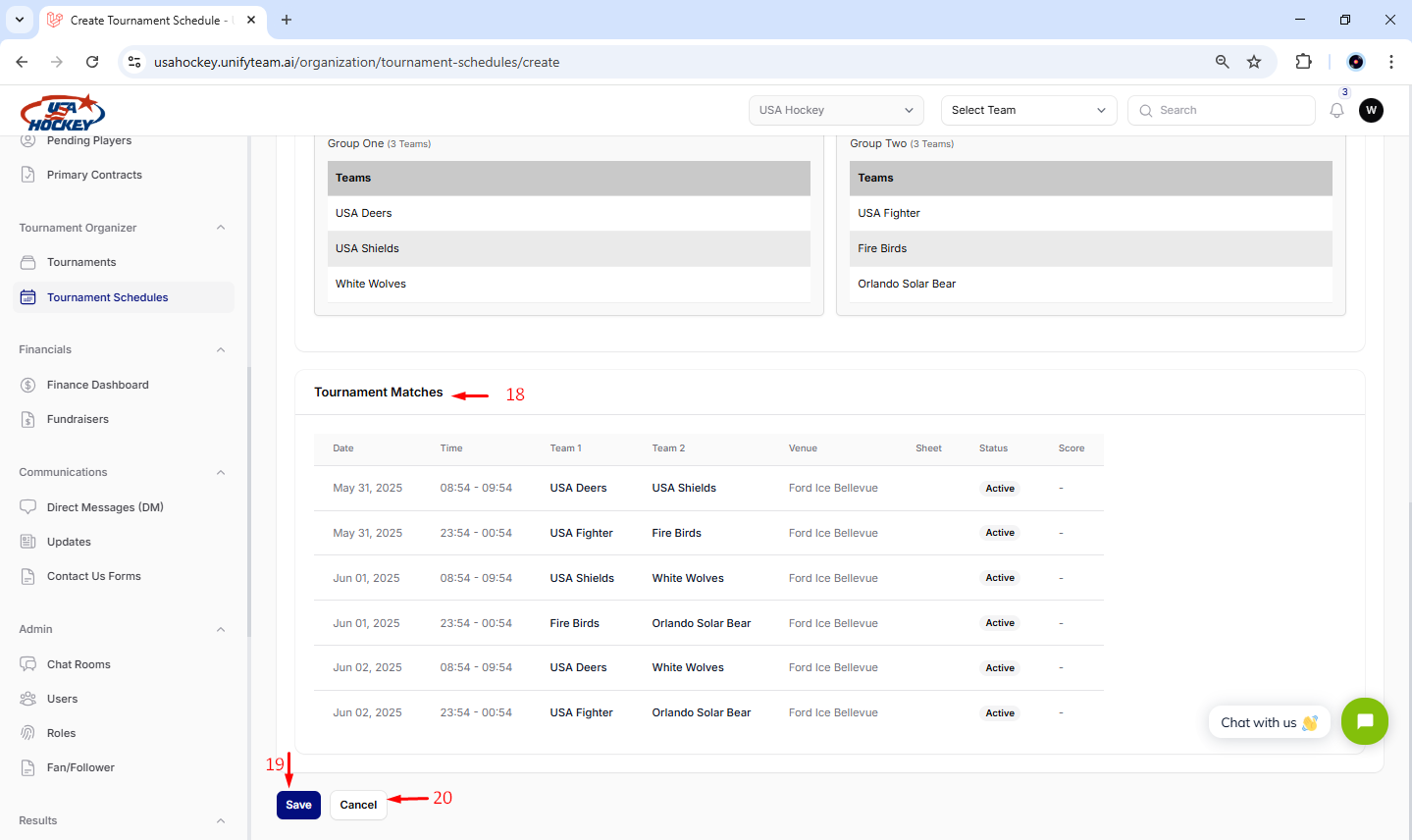
18. Review the Tournament Matches
- In the Tournament Matches section:
- Verify the details of each match, including:
- Date: Ensure all dates are correct and align with your tournament schedule.
- Time: Confirm that match times are accurate and allow sufficient breaks between games.
- Teams: Double-check that the correct teams are listed for each match.
- Venue: Make sure the venue is appropriate for the match.
- Status: Confirm that all matches are set to "Active" or the desired status.
- Verify the details of each match, including:
19. Save the Tournament Schedule
- Once you have reviewed and confirmed all match details:
- Click the Save button to save your tournament schedule.
- This action will finalize and store all configured matches and settings.
20. Cancel Changes
- If you decide not to save the current configuration or need to make significant changes.
- Click the Cancel button to discard any unsaved progress.
¶ Tournament Schedule List
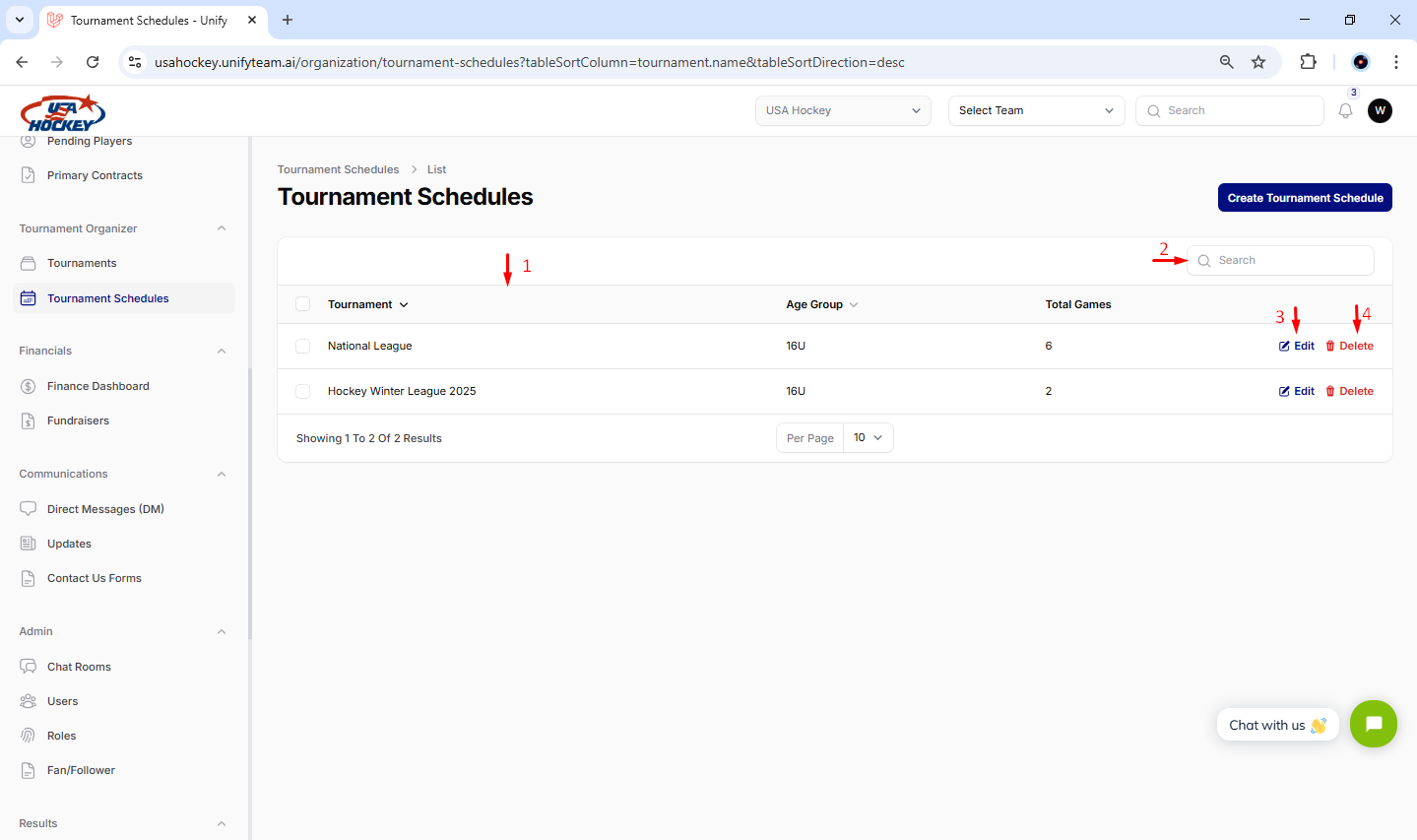
1. Access the Tournament Schedules Section
- Navigate to the Tournament Schedules section in the sidebar on the left.
- Click on the Tournament Schedules icon to view and manage all tournament schedules.
2. Search for Specific Schedules
- Use the search bar at the top of the table to quickly find specific tournament schedules.
- Type keywords such as tournament names or age groups to filter the list.
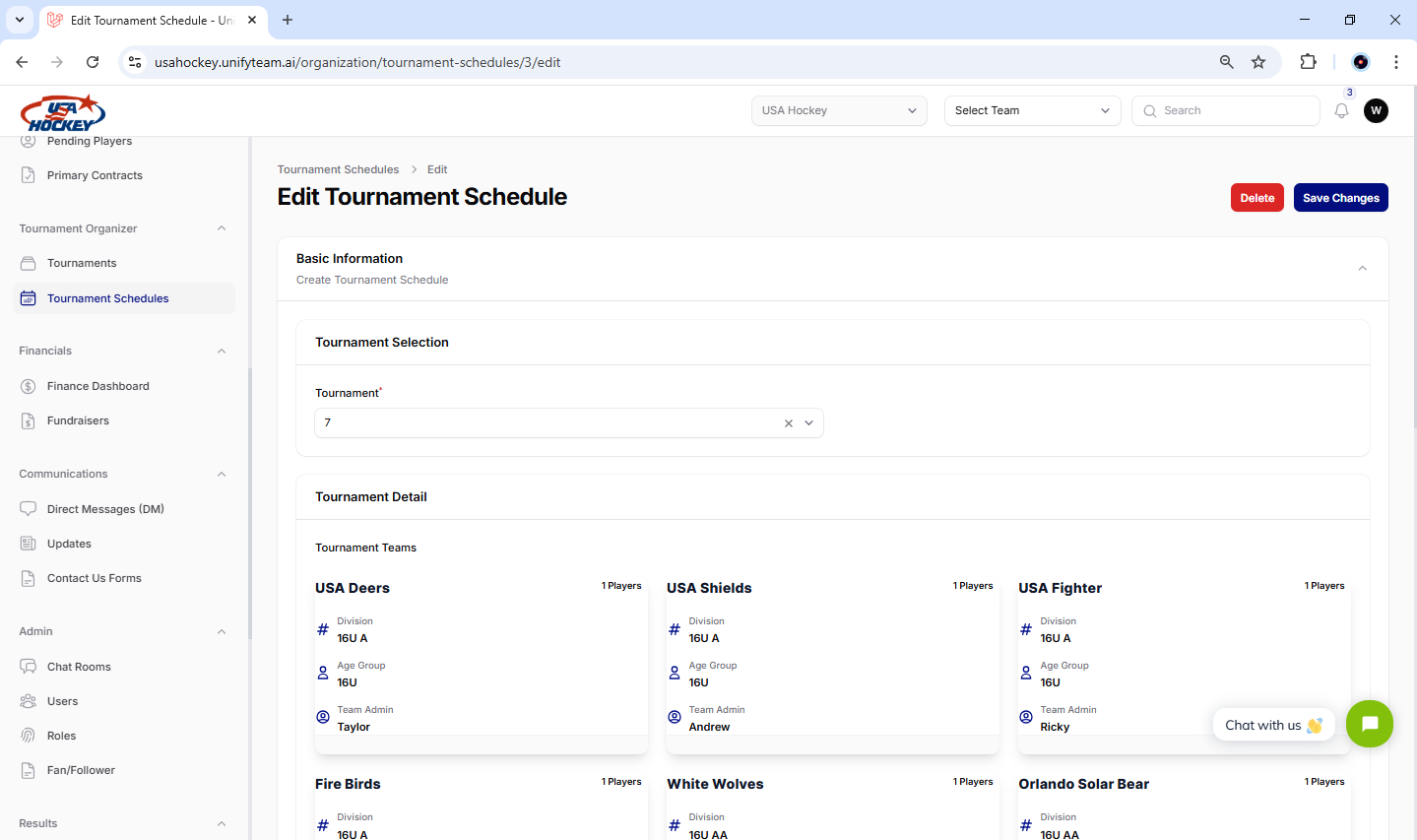
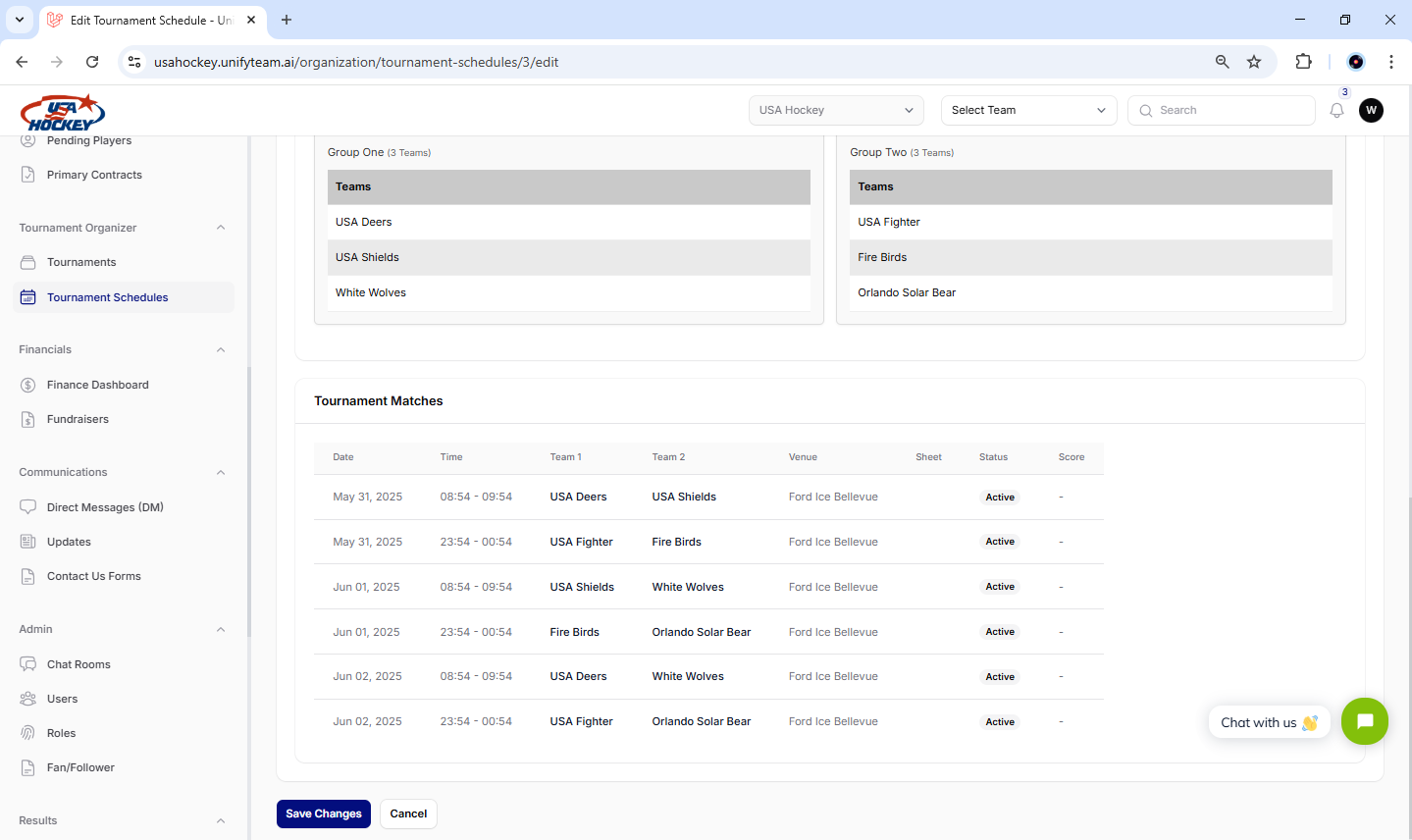
3. Edit Tournament Schedule
- Click the Edit button next to the desired Tournament Schedule in the table.
- A new screen will appear, allowing you to modify the schedule’s details.
- Editable Field:
- Tournament: Update the Tournament Selection of the Tournament as needed.
- After making the necessary changes, click the “Save Changes” button to apply the updates.
4. Delete Tournament Schedule
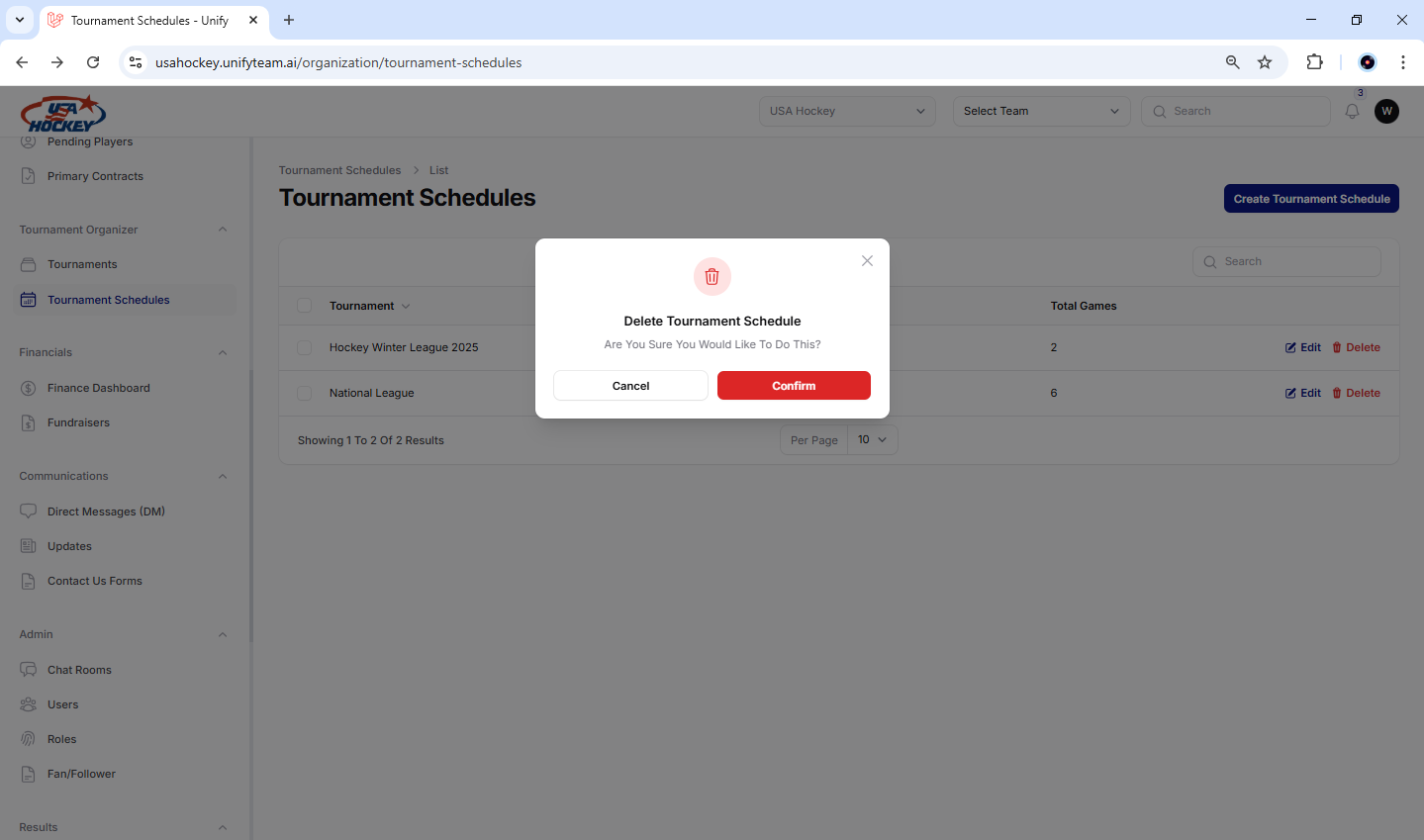
- Click the Delete button next to the Tournament Schedule you wish to remove.
- A Delete Confirmation Pop-Up will appear, asking for confirmation before proceeding.
Actions in the Confirmation Pop-Up:
- Confirm:
- Click the Confirm button to delete the Tournament Schedule.
- A success message will appear, confirming that the schedule has been deleted.
- Cancel:
- Click the Cancel button to abort the deletion process, keeping the schedule intact.
Important Note: Deleting a Tournament Schedule is irreversible, so ensure the schedule is no longer required before confirming.
¶ Permissions for the Tournament Schedules Module:
|
Actions |
|||||
| Roles ⇣ | Access | Create | Edit | Delete | Remarks about module permission |
| Super Admin | Yes | Yes | Yes | Yes | The Super Admin has full access to the Tournament Schedules Module. They can create, edit, and delete tournament schedules across all teams and organizations. |
|
Tournament Organizer |
Yes | Yes | Yes | Yes | Tournament Organizers are granted full access to the Tournament Schedules module, enabling them to generate, edit, and oversee tournament schedules as needed. |
| Team Admin | No | - | - | - | The Team Admin does not have permission to access or use the Tournaments Schedules Module. |
| Team Coach | No | - | - | - | The Team Admin does not have permission to access or use the Tournaments Schedules Module. |
| Vendor | No | - | - | - | The Vendor does not have permission to access or use the Tournaments Schedules Module. |
| Guardian | No | - | - | - | The Guardian does not have permission to access or use the Tournaments Schedules Module. Although they can view tournaments games in the event module in which their kids are participating. |
| Player | No | - | - | - | The Player does not have permission to access or use the Tournament Schedule Module. Although they can view tournaments games in the event module. |
| Fan/Follower | No | - | - | - | The Fan/Follower does not have permission to access or use the Tournaments Schedules Module. |
¶ Note on the Tournament Schedule Module
¶ Strengths of the Documentation
Comprehensive Coverage
- All key functionalities, including creating, viewing, editing, deleting, and managing tournament schedules, are thoroughly explained.
Step-by-Step Instructions
- The step-by-step breakdown for each action ensures users can easily navigate the system.
Focus on Details
- Specific fields like tournament, group, and matches are highlighted, ensuring a complete tournament schedule.
Error Prevention
- Emphasis on confirmation pop-ups for deletion and saving actions reduces the risk of accidental data loss.
¶ Troubleshooting for the Tournament Schedule Module
The process of creating tournament groups and matches involves specifying the number of groups, assigning teams to groups, setting game durations, and configuring match timings. Below are detailed troubleshooting steps for each of the mentioned features in the images.
1. "Create Groups" Modal
Issue 1: The Number of Groups field is not accepting input or displaying an error.
- Solution :
- Ensure that you have entered a valid number of groups. The value must be a positive integer.
- Check if there are any constraints based on the total number of teams. For example, if you have 6 teams, entering more than 3 groups might cause an error.
- Clear your browser cache and cookies, then refresh the page.
- If the issue persists, contact support with details about the error message or behavior.
Issue 2: The Add To Groups button is unresponsive or does not add teams to groups.
- Solution :
- Ensure that you have selected the correct teams from the dropdown menu before clicking Add To Groups.
- Verify that all required fields are filled out correctly.
- Clear your browser cache and cookies, then try again.
- If the problem continues, check your internet connection and try using a different browser.
- Contact support if the issue cannot be resolved.
2. "Create Matches" Modal
Issue 1: The Game Duration Minutes field is not accepting input or displaying an error.
- Solution :
- Ensure that you have entered a valid duration in minutes. The value must be a positive integer.
- Check if there are any constraints or guidelines for game durations specific to your tournament.
- Clear your browser cache and cookies, then refresh the page.
- If the issue persists, contact support with details about the error message or behavior.
Issue 2: The Time Between Matches (Minutes) field is not accepting input or displaying an error.
- Solution :
- Ensure that you have entered a valid time interval in minutes. The value must be a positive integer.
- Verify that the time interval is sufficient to accommodate breaks, setup, and other activities between matches.
- Clear your browser cache and cookies, then refresh the page.
- If the issue continues, check your internet connection and try using a different browser.
- Contact support if the problem cannot be resolved.
Issue 3: The Submit button is disabled or does not respond when clicked.
- Solution :
- Ensure that all required fields (e.g., Game Duration, Time Between Matches) are filled out correctly.
- Check for any validation errors or alerts on the page.
- Clear your browser cache and cookies, then retry the process.
- If the problem persists, verify your permissions to confirm you have the necessary access to create matches.
- Contact support if the issue continues.
Issue 4: The Cancel button does not close the modal or discard changes.
- Solution :
- Ensure that JavaScript is enabled in your browser, as interactive elements rely on it.
- Clear your browser cache and cookies, then refresh the page.
- Try using a different browser to see if the issue persists.
- If the problem continues, contact support for further assistance.
3. General Navigation Issues
- Issue: The Tournament Schedules section is not loading or displaying correctly.
- Solution :
- Ensure that you have the necessary permissions to access the Tournament Schedules section.
- Clear your browser cache and cookies, then refresh the page.
- Try accessing the page using a different browser or device.
- If the issue persists, contact support and provide details about the error or behavior.
- Solution :
4. Search Bar Not Working
- Issue: The search bar does not return expected results or is unresponsive.
- Solution :
- Double-check your search terms to ensure they are accurate and relevant.
- Clear any applied filters or reset the filter settings.
- Refresh the page to reload the data.
- If the issue continues, try using a different browser or clearing your browser cache.
- Contact support if the problem cannot be resolved.
- Solution :
5. Edit Button Not Responding
- Issue: The "Edit" option does not respond when clicked.
- Solution :
- Ensure that JavaScript is enabled in your browser, as interactive elements rely on it.
- Clear your browser cache and cookies, then try clicking the "Edit" button again.
- Try using a different browser to see if the issue persists.
- Verify your permissions to confirm you have the necessary access to edit tournament schedules.
- If the problem continues, contact support for further assistance.
- Solution :
6. Delete Button Not Working
- Issue: The "Delete" option does not allow you to remove a tournament schedule.
- Solution :
- Ensure that you have the necessary permissions to delete tournament schedules.
- Check if the tournament schedule is linked to other processes or dependencies that might restrict deletion.
- Clear your browser cache and cookies, then retry the process.
- If the issue persists, contact support with details about the specific issue.
- Solution :
7. No Tournament schedule displayed
- Issue: The main content area shows no tournament schedule, but you expect to see the existing tournament schedule.
- Solution :
- Check if there are any active filters applied. If specific filters are selected, they might be hiding another tournament schedule. Try selecting "All" in the filter dropdown.
- Refresh the page to ensure all data is up-to-date.
- If the issue persists, contact support and provide details about the expected number of the tournament schedule and any filters applied.
- Solution :
¶ General Troubleshooting Tips
- Clear Browser Cache: Often, clearing your browser cache and cookies can resolve minor issues related to loading or responsiveness.
- Check Permissions: Ensure you have the necessary permissions to perform actions such as viewing, filtering, or managing tournament schedules.
- Verify Internet Connection: Ensure you have a stable internet connection throughout the process.
- Use a Different Browser: Try accessing the site using a different browser (e.g., Chrome, Firefox, Safari) to rule out browser-specific issues.
- Contact Support: If you encounter persistent issues that cannot be resolved through the above steps, contact support and provide detailed information about the problem, including screenshots or error messages.